

A DIY SEO audit is a self-check of the problems that stop Google from finding, understanding, and ranking your website. You can run one in about 60 minutes with free tools like Google Search Console, PageSpeed Insights, and Screaming Frog. Check indexing, broken pages, mobile speed, on-page basics, your Google Business Profile, and AI crawler access. Fix anything that blocks indexing first.
Your website looks fine. The phone just isn’t ringing from Google. Before you pay anyone to find out why, spend one hour checking the problems that most often keep small business sites out of search results.
This DIY SEO audit is built for business owners, not SEO specialists. It shows you how to do an SEO audit yourself, step by step, with free tools and a timer. You’ll finish with a short list of fixes ranked by how much they matter. Some checks take two minutes. A few will tell you to stop and fix something before going any further. That’s deliberate: a page Google can’t index won’t be rescued by a better title tag.
What a One-Hour DIY SEO Audit Can and Can’t Tell You
A quick SEO audit like this one catches the problems that are both common and serious. Think pages missing from Google’s index, broken links, slow mobile pages, and missing or duplicate titles. An outdated Google Business Profile belongs on that list too. Any of these can hold a site back, no matter how good the content is.
It isn’t enough to judge everything. This checklist won’t tell you:
- whether your content is better than the pages that outrank you
- which keywords you should be targeting but aren’t
- whether your backlinks help or hurt you
- whether your site shows enough trust signals, such as named authors and real reviews (what Google’s guidelines call E-E-A-T)
- why traffic fell after a specific Google update
Those questions need more time, paid data, or both. Treat this audit as a health check rather than a diagnosis. If it turns up something serious, you’ll at least know where to look next.
Before You Start: Free SEO Audit Tools and a Scoring Sheet
Set these up before you start the clock. If Google Search Console isn’t connected to your site yet, connect it today and come back in a few days. Its reports need data before they can show you anything useful.
The free tools you need
| Tool | What you’ll use it for | Cost |
| Google Search Console | Indexing status, search queries, Core Web Vitals, manual actions | Free |
| PageSpeed Insights | Speed and Core Web Vitals for individual pages | Free |
| Lighthouse (built into Chrome) | Mobile usability and performance checks | Free |
| Screaming Frog SEO Spider | Crawling your site for broken links, redirects and titles | Free up to 500 URLs |
| Google Business Profile | Your listing in Google Maps and local results | Free |
Screaming Frog’s free version crawls up to 500 URLs at a time, which covers most small business websites. If your site is bigger, Ahrefs Webmaster Tools offers a free site audit once you verify you own the site.
You also don’t need a Semrush or Ahrefs subscription. Those tools shine at competitor and backlink research, which sits outside this hour anyway.
How to score each check
Open a blank spreadsheet with four columns: Check, Result, Priority, and Effort. For each check, write one of three results: Pass, Fix, or Not sure. “Not sure” is a perfectly good answer. It’s far better than a confident guess.
Then give every “Fix” a priority:
| Priority | What it means | Example |
| Critical | Stops Google from finding or indexing key pages | Your main service page carries a noindex tag |
| High | Holds back pages that could rank or convert now | Two of your pages compete for the same search |
| Medium | Weakens results over time | A secondary page loads slowly on mobile |
| Low | Worth fixing when you have spare time | A decorative image has no alt text |
For effort, use three labels: quick (under an hour), medium (a day or less), or project (needs a developer or a content plan). It’s the same scale our team uses in professional SEO audits, so if you ever hand your sheet to an expert, they’ll read it at a glance.
The 60-Minute DIY SEO Audit Checklist
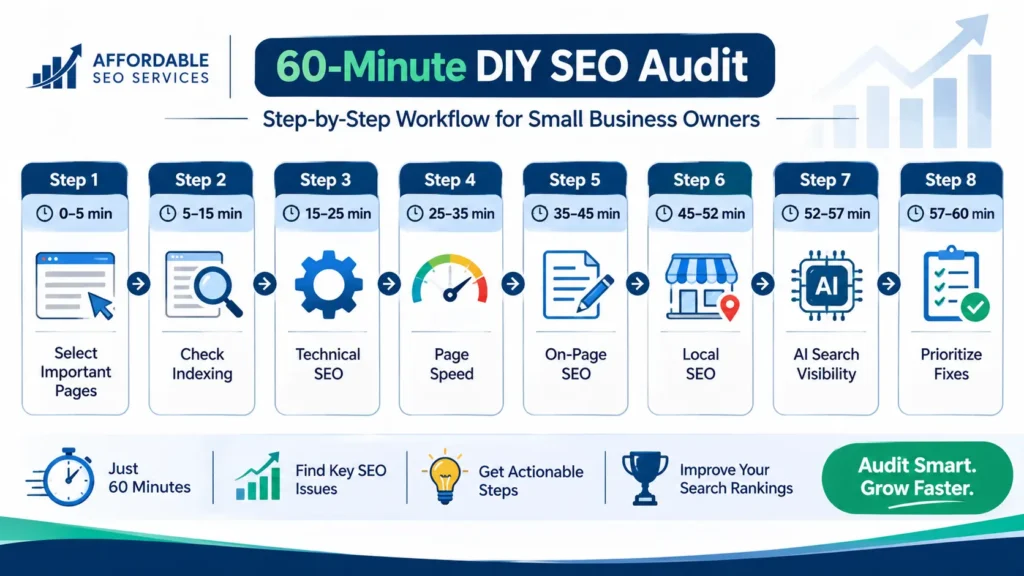
Treat this as an SEO audit checklist for small business websites and work through the blocks in order. The early checks matter most, because each one decides whether the later ones are worth doing yet.
Minutes 0–5: Pick the five pages that bring you customers
Don’t audit your whole site. Choose five pages: your homepage, your two or three most important service or product pages, your contact page, and your most-visited blog post.
To find them, open Search Console, go to Performance, set the date range to the last three months, and click the Pages tab. Sort by clicks. If an important service page barely shows up here, write that down. It’s already your first finding. If you use Google Analytics 4 (GA4) with conversions set up, check which pages lead to calls or form fills, and swap one of them in.
Minutes 5–15: Check whether Google can find and index your site
This is the most important ten minutes of the hour.
1. Run a site: search. Type site:yourdomain.com into Google. The number of results is a rough estimate, not an exact count, but a big gap between that number and the pages you actually have deserves a closer look.
2. Open the Page indexing report. In Search Console, go to Indexing → Pages and read the list under “Why pages aren’t indexed.” Check whether any of your five pages appear there. Common reasons include “Excluded by ‘noindex’ tag,” “Blocked by robots.txt,” “Not found (404),” and “Crawled – currently not indexed.”
3. Inspect your five URLs. Paste each one into the URL Inspection bar at the top of Search Console. “URL is on Google” is a pass.
4. Read your robots.txt file. Visit yourdomain.com/robots.txt. If you see Disallow: / under User-agent: *, your whole site is blocked from crawling. This often happens when a developer blocks crawlers during a rebuild and forgets to undo it.
5. Check your XML sitemap. Visit yourdomain.com/sitemap.xml (sites using Rank Math or Yoast often use sitemap_index.xml). Make sure it loads, then confirm it’s submitted under Sitemaps in Search Console.
6. Check for manual actions. Go to Security & Manual actions → Manual actions. You want to see “No issues detected.”
On WordPress, also open Settings → Reading and make sure “Discourage search engines from indexing this site” is unchecked. It’s a single box, and it can hide an entire website.
Stop rule: If a key page isn’t indexed, robots.txt blocks your site, or a manual action appears, mark it Critical and fix it before you continue. Everything below this point matters less until Google can see your pages.
Minutes 15–25: Crawl for broken pages, redirects and duplicate URLs
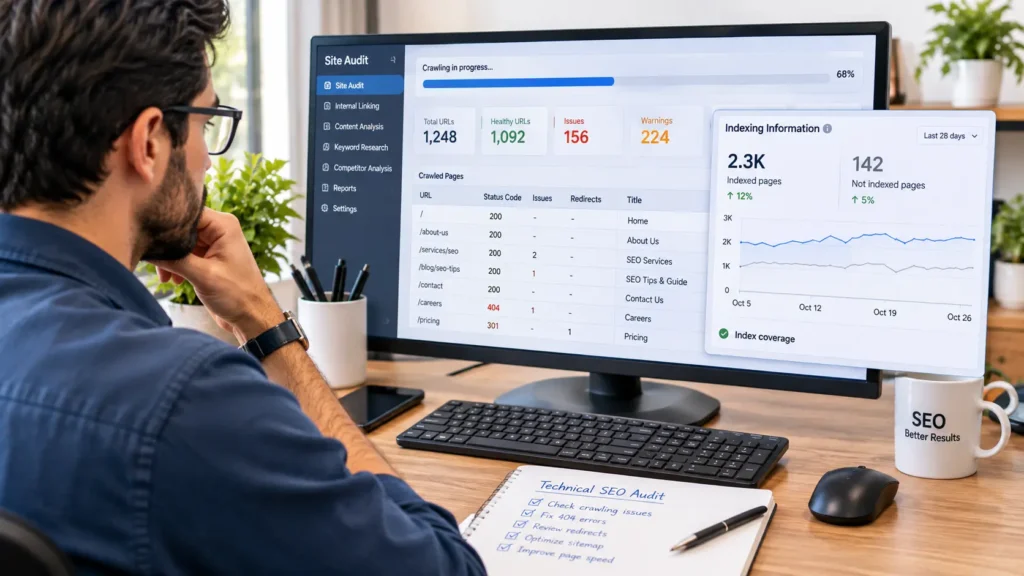
Download Screaming Frog, type your homepage address into the bar at the top and click Start. A small business site usually finishes in a few minutes. This is the technical SEO audit part of the hour, so don’t worry if some labels look unfamiliar.
- Broken pages: Open the Response Codes tab and filter by Client Error (4xx). Click any result, then the Inlinks tab at the bottom, to see which of your pages link to it.
- Redirect chains: Filter by Redirection (3xx). If page A redirects to B, which redirects to C, update your links to point straight to C.
- Canonical tags: Open the Canonicals tab. Each key page should have a canonical tag pointing to itself. If one points to a different URL, you’re telling Google to index that other page instead.
- Titles: Open the Page Titles tab and note anything marked Missing or Duplicate. You’ll use this in the on-page step.
Then run one manual test. Type these four versions of your domain into your browser: http://yourdomain.com, https://yourdomain.com, http://www.yourdomain.com, and https://www.yourdomain.com. All four should end up at the same address. If two versions load on their own, Google can treat them as separate sites and split your signals. The fix is a permanent (301) redirect from every other version to your main one. If the HTTP version still loads, your SSL certificate isn’t being enforced, and browsers may warn visitors that the page isn’t secure.
Broken links that point to your service or contact pages are High priority. Broken links on old blog posts are usually Medium.
Minutes 25–35: Test page speed and Core Web Vitals on mobile
Start in Search Console under Experience → Core Web Vitals. This report uses data from real Chrome visitors, so a low-traffic site may show “not enough data.” That’s normal. Move on to PageSpeed Insights.
Run your homepage and your top service page through PageSpeed Insights in the mobile setting. When real-user data appears at the top, trust it over the 0–100 score underneath. Here are Google’s published thresholds:
| Metric | What it measures | Good | Poor |
| Largest Contentful Paint (LCP) | How fast the main content appears | 2.5 seconds or less | Over 4 seconds |
| Interaction to Next Paint (INP) | How fast the page responds to taps and clicks | 200 ms or less | Over 500 ms |
| Cumulative Layout Shift (CLS) | How much the layout jumps while loading | 0.1 or less | Over 0.25 |
INP replaced First Input Delay as a Core Web Vital on March 12, 2024, so ignore any guide that still tells you to check FID.
For mobile usability, use Lighthouse. Google retired the Mobile-Friendly Test and the Search Console Mobile Usability report in December 2023. In Chrome, right-click your page, choose Inspect, open the Lighthouse tab, select Mobile, and run the report.
Then do the test no tool can do for you. Open your site on your own phone, tap your phone number, and try to submit your contact form. If either one fails, that’s a high-priority fix, whatever your speed score says.
A “Poor” result on a page that brings in customers is High priority. “Needs improvement” is Medium. Oversized images are the most common cause on small business sites, and they’re often the quickest fix.
Minutes 35–45: Review the on-page basics on your top pages
This is the on-page SEO audit. Go back to your five pages and check each one:
- Title tag: Is it unique, and does it say what the page offers? For a local business, include the service and the area. Around 50–60 characters is a useful guide, not a hard rule.
- Meta description: Is it unique, and does it tell searchers what they’ll get? Google often rewrites these, but a clear one still helps when it’s shown.
- One H1: Does the main heading state what the page is about?
- Search intent: In Search Console, open Performance, click the page, then the Queries tab. If a service page mostly shows up for “how to” questions, the page and the searches don’t match.
- Competing pages: Click one of your main keywords in the Queries list, then the Pages tab. If two of your pages share the impressions for the same search, they may be competing with each other, a problem known as keyword cannibalization. Mark it High.
- Internal links: Can a visitor reach every service page within two clicks of the homepage? Is each service page linked from at least one related page in the body text, not just the menu? A page with no internal links pointing to it is called an orphan page, and Google may struggle to find it.
- Image alt text: Does each meaningful image have a short description of what it shows?
Minutes 45–52: Run a local SEO audit of your Google Business Profile
If customers find you through Google Maps, this block may matter more than anything on your website. Search your business name on Google and on Maps, then check:
- Is the profile verified, and is the primary category as specific as possible?
- Are your hours, phone number, and website link correct? The link should point to the https version of your site.
- Do your business name, address, and phone number match exactly across your website, your profile, and major listings, often called citations, such as Yelp, Facebook, and the BBB? An old phone number or a previous address is a common culprit.
- When did your most recent review arrive, and have you replied to the last few?
Our guides on how to optimize your Google Business Profile and fix NAP consistency walk through each fix in detail. If you sell only online and don’t serve a local area, skip this block and spend the extra seven minutes on on-page checks.
Minutes 52–57: Check whether AI search tools can read your site
AI answers now sit above many search results, so it’s worth five minutes to make sure you haven’t locked yourself out by accident.
- Google AI Overviews: These draw on Google’s normal search index, which Googlebot builds. If your pages passed the indexing checks earlier, you’ve already covered the main technical requirement. Blocking the Google-Extended token in robots.txt controls whether your content helps train Gemini, but Google says it doesn’t affect a site’s inclusion in Search.
- ChatGPT search: OpenAI uses separate crawlers. GPTBot collects training data, while OAI-SearchBot powers ChatGPT search. According to OpenAI’s crawler documentation, sites that block OAI-SearchBot won’t be shown in ChatGPT search answers. Look in your robots.txt for a User-agent: OAI-SearchBot group with Disallow: /. Some security plugins and hosting firewalls block AI crawlers by default, so ask your host if you’re unsure.
- Answer-first pages: Read the first two sentences of each service page. Do they say what you do, where, and for whom? AI tools, featured snippets, and People Also Ask boxes all favor pages that answer the question quickly.
- Structured data: Run your homepage through Google’s Rich Results Test and see whether it detects Organization or LocalBusiness markup. If you publish FAQs, our guide on how to add FAQ schema shows the markup step by step.
Our article on how to get cited in Google AI Overviews goes deeper if this block raises questions.
Minutes 57–60: Rank what you found
Sort your sheet so Critical items sit at the top, then High items with quick effort, then the rest. Pick the top three. Next to each, write who will fix it and by when. Three fixes that actually happen beat twenty that sit in a spreadsheet.
What to Fix First
Fix whatever stops Google from seeing your pages first, then whatever stops customers from contacting you. This table shows where the most common findings usually land.
| Finding | Priority | Effort | Who usually fixes it |
| Key page has a noindex tag, or robots.txt blocks the site | Critical | Quick | You, in your CMS or SEO plugin |
| Manual action in Search Console | Critical | Project | An SEO specialist |
| Key service page shows “Crawled – currently not indexed” | High | Medium to project | You, by expanding thin content on the page |
| Phone link or contact form fails on mobile | High | Quick to medium | You or your developer |
| Both http and https versions load separately | High | Quick to medium | Your developer or host |
| Broken links pointing to service or contact pages | High | Quick | You |
| Two pages competing for the same search | High | Medium | You or an SEO specialist |
| Core Web Vitals “Poor” on a page that brings in customers | High | Medium to project | Your developer |
| Wrong hours, category or phone number on your Google Business Profile | High for local businesses | Quick | You |
| Missing or duplicate title tags | Medium | Quick | You, in your SEO plugin |
| OAI-SearchBot blocked by accident | Medium | Quick | You or your host |
| Business details that don’t match on directories | Medium | Medium | You |
| Missing alt text on images | Low | Quick | You |
The developer-level rows, such as redirects, domain versions, and Core Web Vitals, are where technical SEO help usually pays for itself. Most of the other rows you can handle yourself in an afternoon.
Mistakes That Waste Your Audit Hour
- Chasing a tool’s score. A 100/100 in PageSpeed Insights or an “SEO score” from an online checker isn’t the goal. Real-user Core Web Vitals and indexed pages are what count.
- Trying to fix every warning. Crawlers flag dozens of issues, and many of them barely matter. A low text-to-HTML ratio, for example, isn’t worth your afternoon. Fix by priority, not by the length of the list.
- Testing only on desktop. Google uses mobile-first indexing, which means it mainly looks at the mobile version of your site, and most local searches happen on phones. If you only checked on a laptop, you haven’t really checked.
- Following outdated guides. A checklist that still sends you to the Mobile-Friendly Test or First Input Delay probably hasn’t been updated since early 2024. Treat the rest of its advice with care.
- Copy-pasting a “block all AI bots” rule. One line in robots.txt can remove you from ChatGPT search without blocking anything you meant to block. Decide crawler by crawler.
- Changing everything at once. If you rewrite titles, compress images, and restructure menus in the same week, you won’t know which change helped. Note the date of each fix, then compare in Search Console after four to six weeks.
When a DIY Audit Isn’t Enough
A one-hour check finds problems. It doesn’t always explain them. Consider bringing in help if any of these apply:
- Your traffic dropped sharply after a redesign, a platform switch, or a hosting move.
- Search Console shows a manual action you don’t understand.
- Your site has more than 500 pages, or an online store with filter and variant URLs.
- Several of your pages compete for the same searches, and you’re not sure which one to keep.
- You fixed the obvious issues months ago and rankings still haven’t moved.
In those cases, the hard part is judgment: deciding which issues are causing the damage and what to change first. That’s what a human-reviewed SEO audit is for. Ours start at $299 as a one-time fixed price and arrive within seven business days, with every issue ranked from Critical to Low and paired with a plain-English fix.
Not ready for that? Start with our free 15-point audit preview. We check your site by hand and send your top three critical issues, with no credit card required.
Get the Free SEO Audit Checklist Template
This free SEO audit checklist turns every step of this guide into one Google Sheet. Each row shows the time block, the tool to open, and a Pass / Fix / Not sure column, with dropdowns for priority and effort. It works as a website audit checklist for any small business, whatever platform you use. Make a copy, run it every quarter, and keep the old tabs. Comparing one quarter’s results with the last is the fastest way to spot a problem that’s creeping back.
Your Next Step
The value of a DIY SEO audit isn’t the spreadsheet. It’s the three fixes you make this week. Set a timer, work through the blocks in order, and stop wherever the checklist tells you to. If you hit something you can’t explain, our free 15-point audit preview is a low-risk way to get a second pair of eyes on it.
DIY SEO Audit FAQs
Can I really do an SEO audit myself for free?
Yes. A basic SEO audit costs nothing. Google Search Console, PageSpeed Insights, Lighthouse, and Screaming Frog’s free version cover indexing, crawl errors, speed, and on-page checks at no cost. What free tools can’t do is weigh the findings against each other or judge your content against competitors.
How often should I run a DIY SEO audit?
Run this one-hour check once a quarter. Also run it straight after any redesign, platform switch, hosting move, or URL change, because those are the moments indexing and redirect problems tend to appear. For most small businesses, a full professional audit about once a year is enough.
How long does a full SEO audit take compared with this one?
A full audit covers far more ground, including content quality, competitors, trust signals, and backlinks. That usually takes days rather than an hour, because someone has to weigh each issue against the others. This guide deliberately covers only the checks that fit into an hour.
Do I need Semrush or Ahrefs for a DIY SEO audit?
No. Paid tools help most with keyword, competitor, and backlink research, which falls outside a one-hour audit. Everything in this checklist works with free tools.
How soon will my fixes show up in Google?
It depends on how quickly Google recrawls the changed pages. You can ask Google to recrawl an important page with Request indexing in the URL Inspection tool. There’s no guaranteed timeline, so note the date of each fix and compare Search Console data after a few weeks.
How much does a professional SEO audit cost?
Prices vary widely with site size and depth. Our audits start at $299 as a one-time price. For a broader view of budgets, see our breakdown of what SEO costs for a small business.
What should I check if I only have 10 minutes?
Open Search Console and check three things: the Page indexing report, the Manual actions page, and the URL Inspection result for your main service page. If all three look healthy, the most damaging problems are probably not present.